
You can't un-share your phone number.
Give patients your own dedicated
clinic line instead.
Currently built specifically for BC practitioners.
Straightforward pricing.
Total privacy.
THE
FOUNDING 50
$14.99/month
(retail price: $29/month)
We're opening CUB to 50 BC practitioners before public launch. Join now and lock in $14.99 for life — your rate never changes as long as you stay subscribed.
STANDARD
$29/month
Full access to CUB Line — no waitlist, no limited-time pricing, just straightforward monthly billing.
BOTH PLANS INCLUDE
✓ 500 minutes of local calling & unlimited text messages
✓ Dedicated BC 778, 604, 236 or 250 number of your choice (subject to availability)
✓ Works on any device — phone, tablet, or computer. Nothing to install
✓ Built for BC PIPA & PIPEDA compliance
✓ A professional business line — another deductible expense for your practice
YOUR NEW NORMAL
Here's what that actually looks like.
BEFORE CUB LINE
❌ A patient texts you at 10pm asking to move tomorrow's appointment
❌ You need to cancel last-minute for personal reasons, so you text from your own phone to reach them fast — and now they have your number forever
❌ You hesitate before calling a patient back — your personal number is about to show up on their screen
❌ Your "day off" is really just ignoring texts and feeling guilty about it, or feeling obligated to answer your patients
❌ Family, friends, and patients are all reaching you at the same phone number and texting apps
❌ Giving a patient your personal cell feels unprofessional — like you're a friend doing them a favour, not running a practice
AFTER CUB LINE
🌿 Patients text your dedicated clinic number — you decide when you're reachable, even at 10pm
🌿 Cancel last-minute from CUB, and your personal number never enters the picture
🌿 Your clinic number shows up on their screen, not your personal one — call with confidence
🌿 Flip to Off Duty and CUB handles the auto-reply — no guilt, no obligation
🌿 One number for your practice, one for your life — they never cross, no second phone needed
🌿 Your clinic number is legitimate, expected, and entirely yours to share — patients save it once and always know it's you
See it in action.
Three everyday moments, handled by CUB.
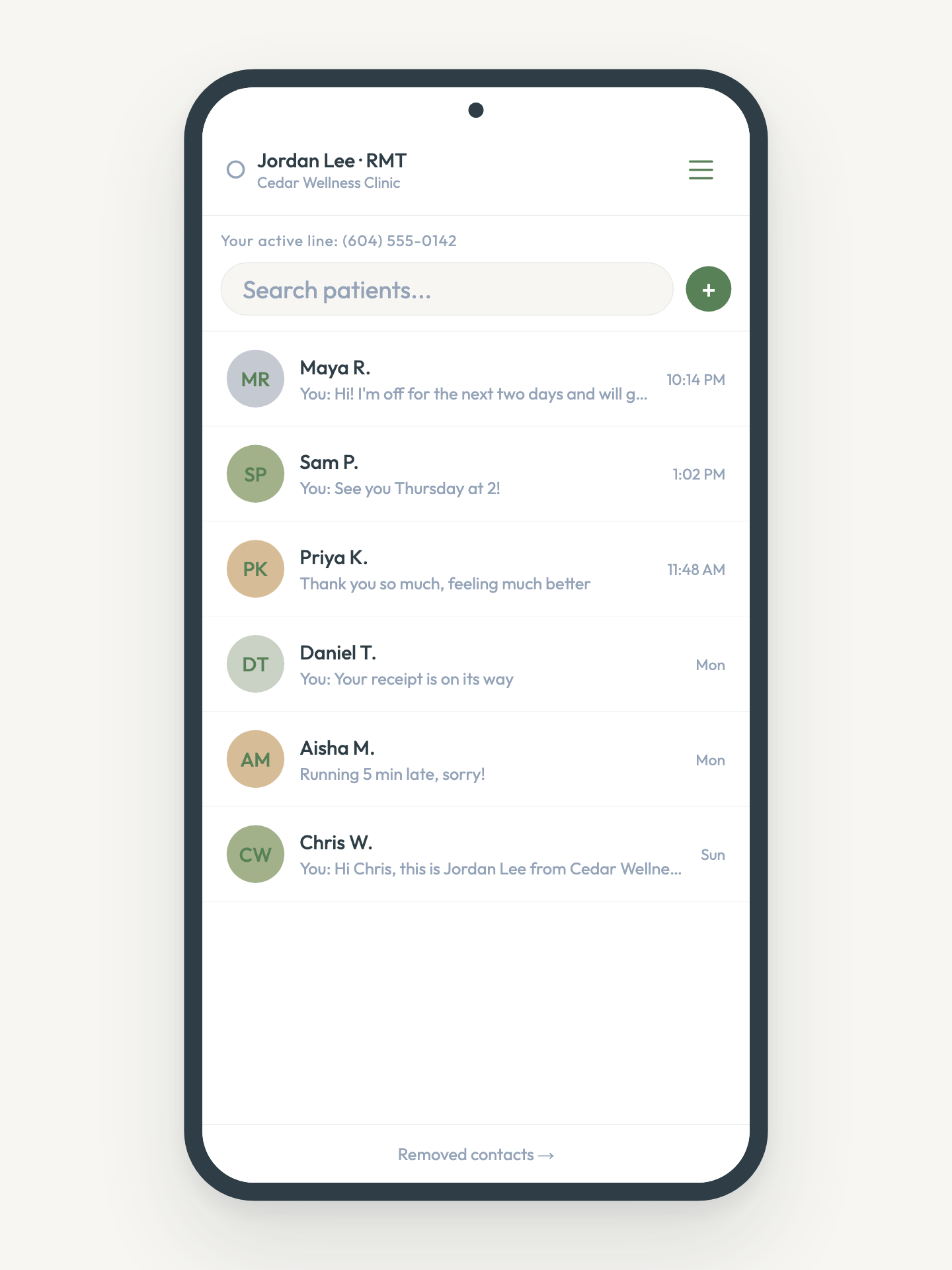
Patients get your auto-reply. You get your evening back.
Off Duty, handled.
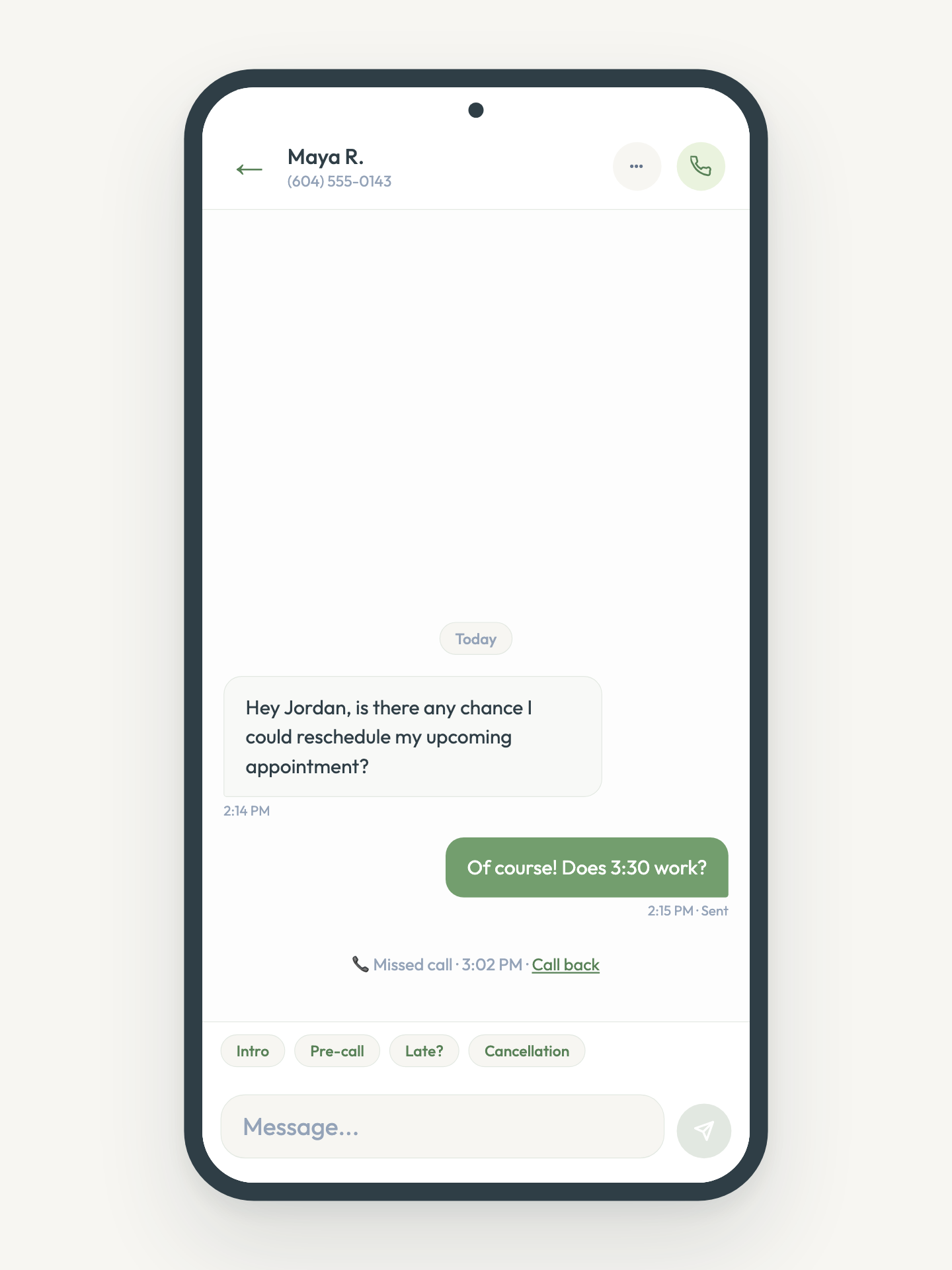
Never lose a patient call.
Missed calls show up in CUB with one-tap Call back.
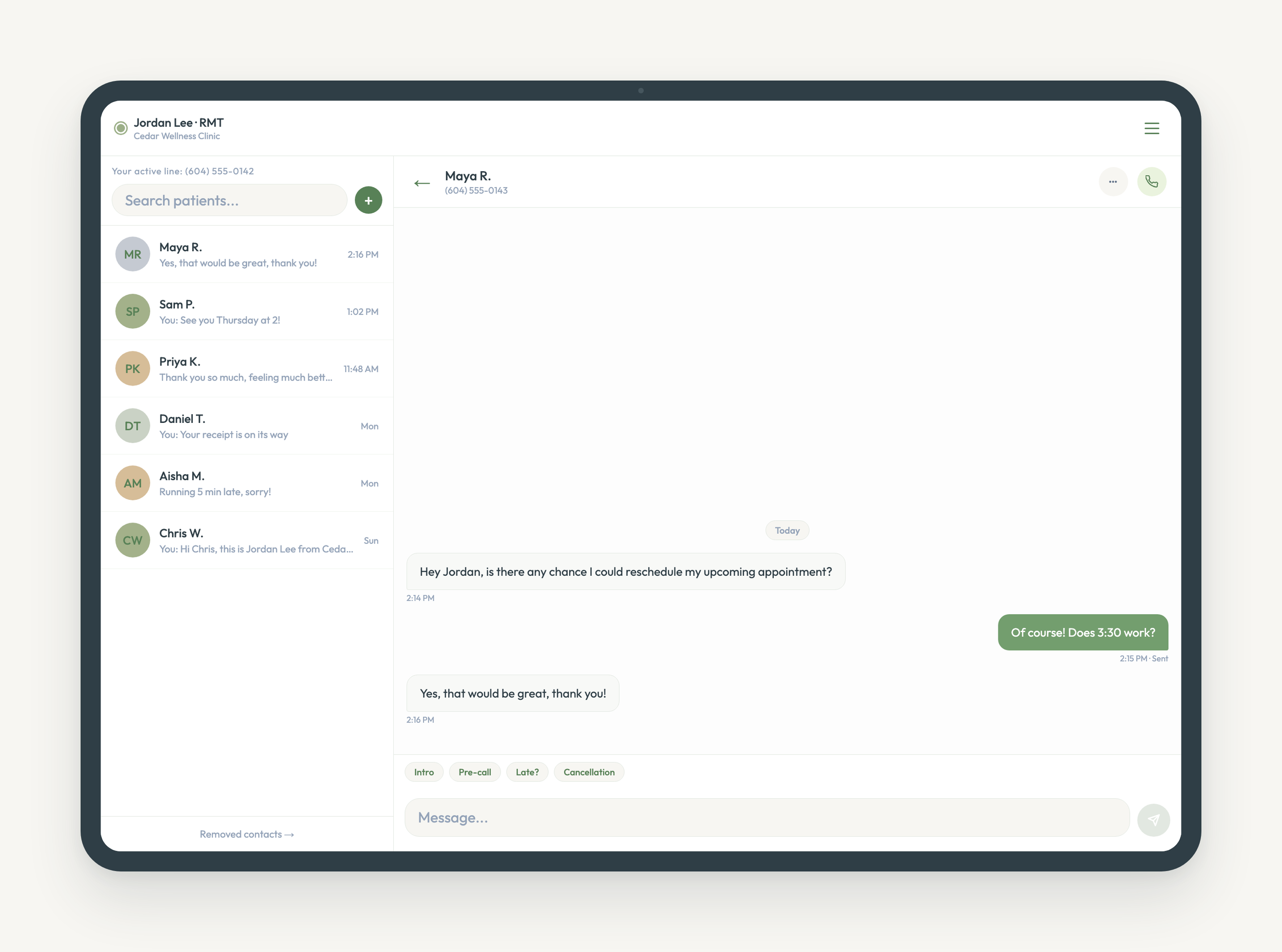
Made for the iPad at your clinic.
Your patient list and chat, side by side.
Up and running in three steps.
That’s it.
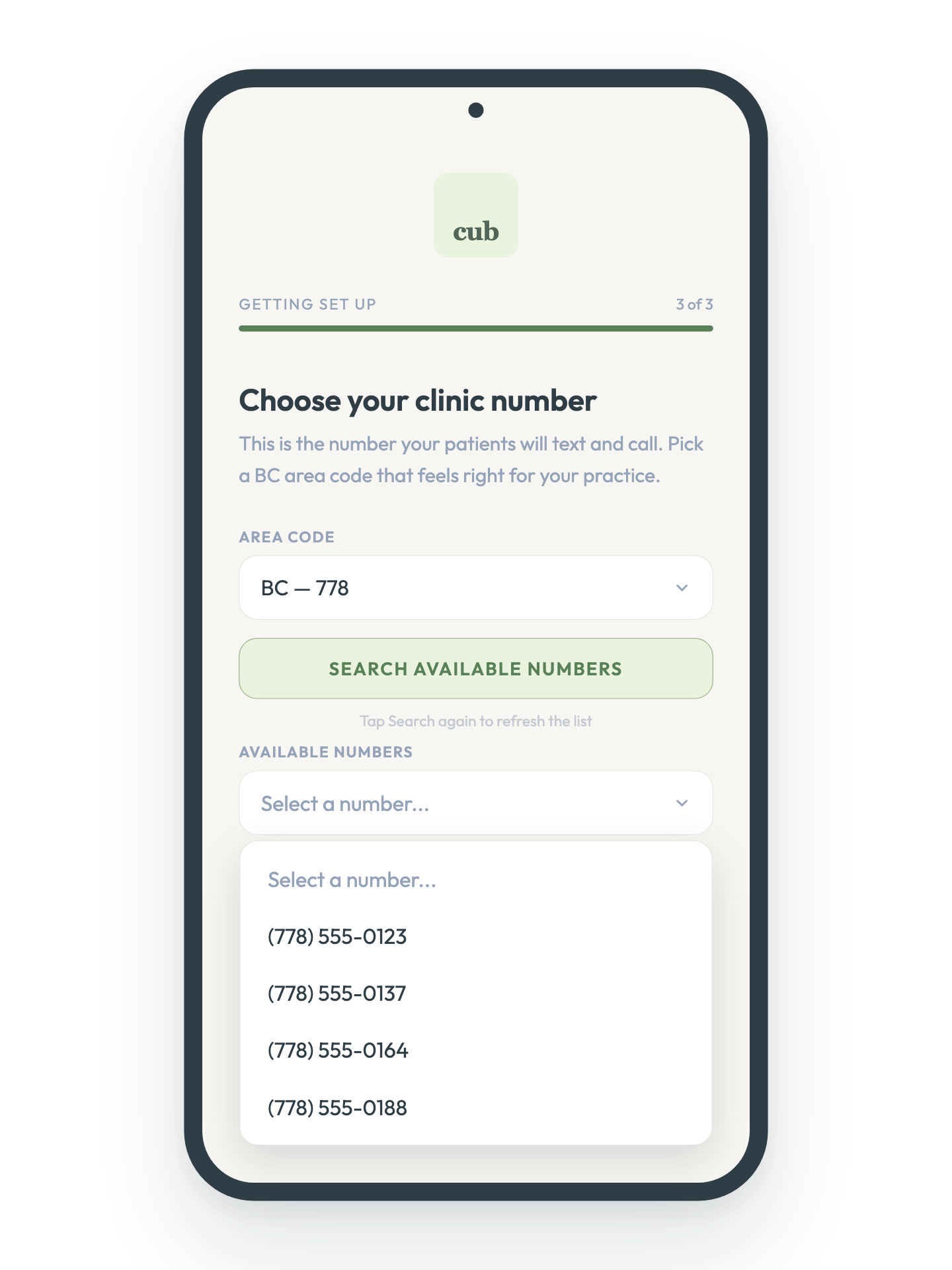
1.
Claim your number
Pick a local 778, 236, 604 or 250 number as your dedicated clinic line. It's yours instantly — no porting, no carrier calls, no waiting.
2.
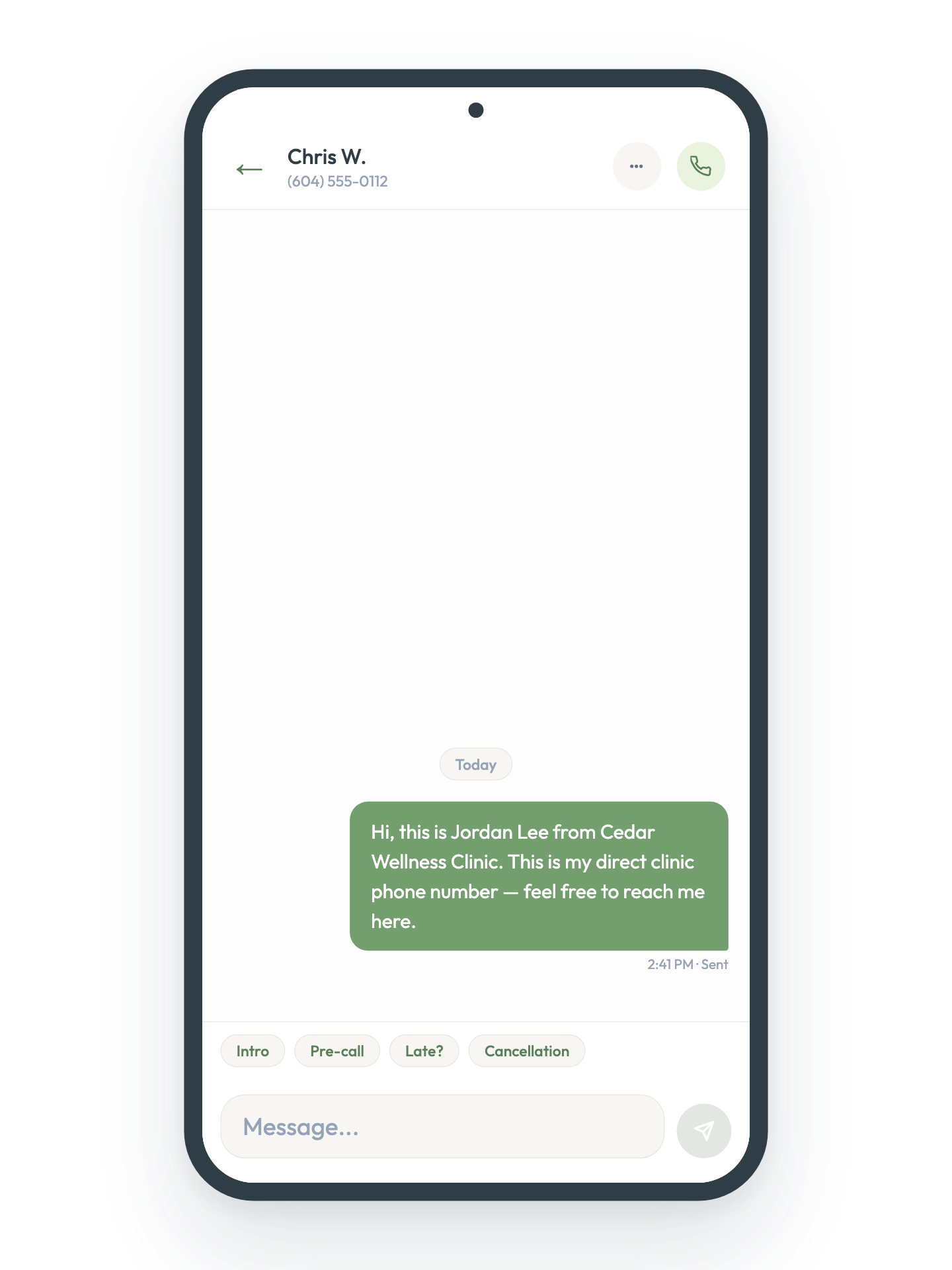
Share it like you mean it
Add it to your intake forms or email signature. Patients save it once — always clearly know it’s you, never a random number.
3.
Message, call, and log off
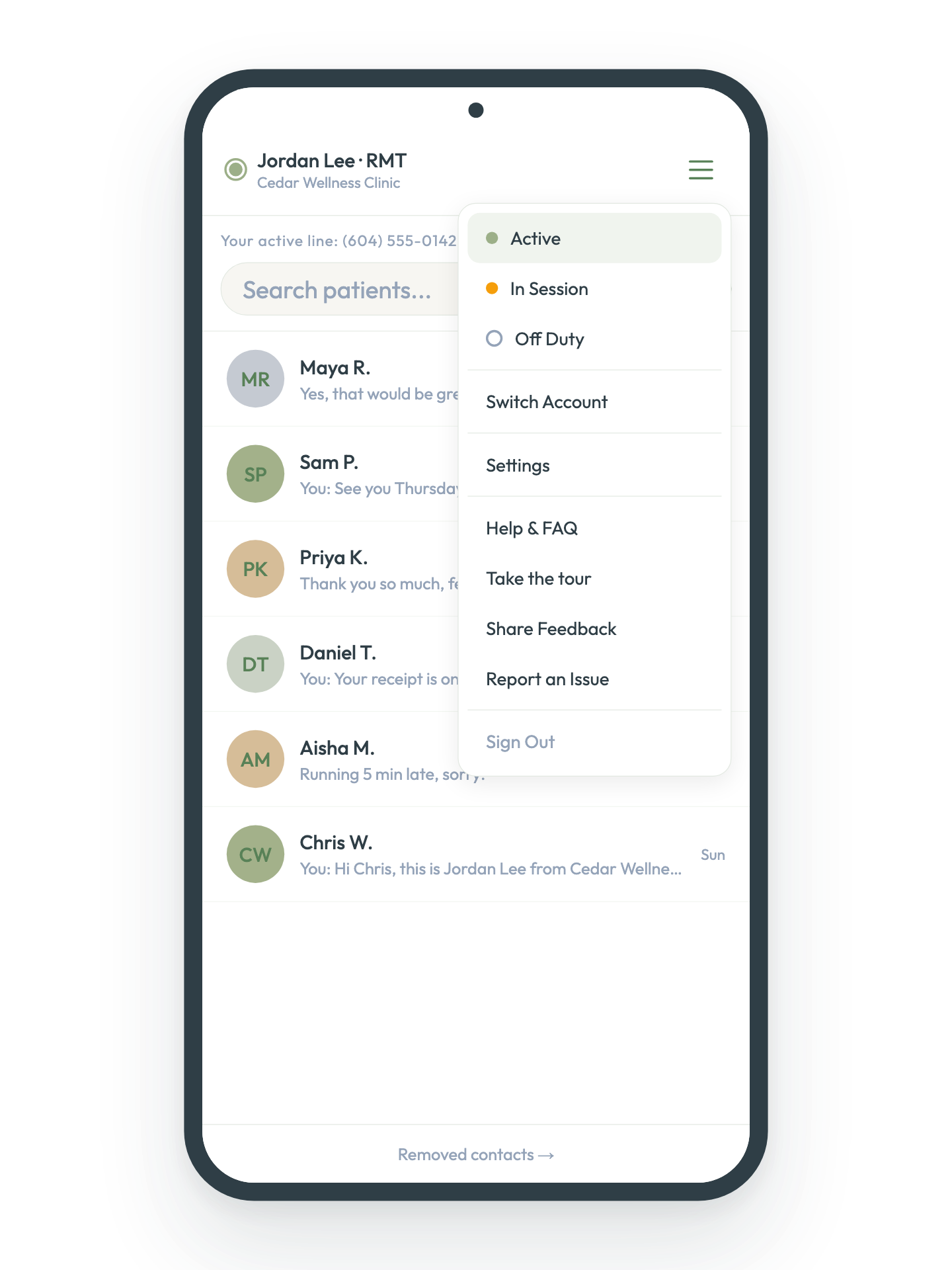
Text and call patients right from your device browser or phone. Flip to Off Duty when you're done, and CUB handles the rest.
Your patients never download anything or create an account — CUB is invisible to them. And you're never tied to one device: reply from your tablet, laptop, or phone, wherever you are.
HOW-TO VIDEOS
Watch it done.
Every step, in about a minute.
Install on iPhone & iPad · 1:05
Install on Android · 44s
Claim your number · 36s
Your first call · 1:04
Send your first text · 36s
Off Duty & auto-replies · 53s
Set up and send your first text in about 5 minutes.
WHAT’S COMING
We're just
getting started.
Now
✓ Dedicated BC clinic number
✓ Two-way SMS with patients
✓ Voice bridge calling
✓ Active, In Session, and Off Duty status
✓ Push notifications
✓ Days off scheduling with auto-replies
✓ Quick reply shortcuts
✓ Bulk SMS broadcasts
✓ Optimized for iPad and Android
✓ Chat history export
✓ Guided in-app onboarding
Coming soon
◯ Native iOS and Android apps
◯ MMS — receive and view patient images
◯ Voicemail transcription
◯ QR code for quick number sharing
◯ Multiple clinic numbers per account
◯ Team plans — multiple users per line
◯ One-tap booking link
◯ Referral program
◯ Number porting
Compliance isn't an afterthought.
It's the foundation.
We believe protecting your patients' data is just as important as protecting your own privacy. CUB Line is built to align with Canadian healthcare privacy standards — giving solo practitioners the peace of mind to focus on what matters most.
This isn't just another piece of software. I'm an RMT — I needed my patients to have somewhere professional and organized to reach me, without it creeping into my personal life.
— Jamie
RMT & Founder
BC PIPA Compliance
Designed specifically for private practitioners in British Columbia. We handle the compliance so you can focus on care.
Bank-Level Encryption
Your data is protected by AES-256 encryption at rest and TLS encryption in transit — the same standards used by financial institutions.
Privacy-First Architecture
Patient communications are protected by row-level security policies, ensuring your messages are never accessible to other practitioners. We follow a Minimum Necessary data policy — we facilitate your professional bridge, but we never sell your data.
Professional Accountability
We partner exclusively with Tier-1 providers — including Supabase and Twilio — who maintain formal Data Processing Agreements as part of how they handle information on our behalf.
Still have questions?
We’ve got answers.
Getting Started
-
CUB gives you a dedicated BC clinic phone number that lives right in your browser. Text and call patients from your clinic number without ever giving out your personal number — no second phone, no second SIM card.
-
Not yet. CUB is built specifically for BC practitioners — from PIPA compliance to BC-specific insurer billing guides. We're open to expanding to other provinces in the future, but there's no timeline yet.
-
You need a Google account to sign in and a device with a modern browser. Setup takes about 5 minutes and your clinic number is ready to use immediately.
-
CUB works on any device with a modern browser — Mac, Windows, iPad, iPhone, and Android. No download required. Just open app.getcubsuite.com and sign in.
-
On iPad, use Safari for the best experience — it supports Add to Home Screen and push notifications. On Mac or Windows, use Chrome. On Android, use Chrome for the best experience. Tap the three-dot menu → Add to Home Screen to install it like an app.
-
Yes — open app.getcubsuite.com in Safari on your iPhone. For the best experience, tap Share → Add to Home Screen to install it like a native app.
-
Yes — add your CUB clinic number to your personal contacts with a name you'll recognize instantly, like "CUB Line" or "Clinic Line." This way you'll always know when a patient is calling back on your clinic line and never miss them.
-
Adding CUB to your home screen gives you the most stable experience. It removes the browser navigation bar, prevents accidental back button presses, and makes push notifications work more reliably. In Safari tap Share → Add to Home Screen → Add.
-
If CUB appears stuck on loading, simply close the app completely and reopen it from your home screen icon. If it still doesn't load, go to Settings → Safari → Clear History and Website Data, then reopen CUB from your home screen.
-
If messages appear blank after waking your iPad, simply close CUB and reopen it from your home screen. This is a known limitation of web apps on iOS and takes just a second to fix.
Setup Guide
-
Go to app.getcubsuite.com and click Sign in with Google. Use the Google account you want associated with your CUB account.
-
Enter your name, clinic name, and profession type. This personalizes your quick action messages and helps patients recognize who is texting them.
-
This is the number CUB calls first when you initiate a voice call to a patient. Your personal number stays completely hidden — patients only ever see your clinic number on their caller ID.
-
Choose a BC area code (604, 778, 236, or 250) and search for available numbers. Pick one that feels right for your practice and claim it — this becomes your permanent clinic line.
-
Tap the hamburger menu in the top right to set your status. Active means you're available. In Session means you're with a patient. Off Duty means you're done for the day.
-
Go to Settings and write your auto-reply message. Enable it so patients automatically receive a warm response when you're Off Duty.
-
This is the most important step for a stable experience. In Safari tap Share → Add to Home Screen → Add. Once opened from your home screen, allow notifications when prompted so you never miss a patient message.
-
Tap the + button to start a new conversation. Enter your patient's number and use the Intro quick action to introduce your new clinic line.
Messaging
-
You give patients your clinic number just like you would a regular phone number. They text it from their phone and the message shows up instantly in your CUB inbox.
-
Yes — your clinic number appears as the sender on every message and call. We recommend introducing yourself the first time so patients save your number.
-
Every message is safely saved in your inbox. You'll receive a notification so you always know when something is waiting.
-
Absolutely — just click the + button to start a new conversation with any phone number. Perfect for a quick check-in, a pre-call heads up, or any direct message you want to send from your clinic line.
-
Use the Intro quick action chip in the message box. It sends a warm, professional introduction letting patients know this is your clinic line.
-
CUB currently supports text messages only. Image and file sharing is on our roadmap and coming soon. We recommend asking patients to send image files to your email in the meantime.
Voice Calls
-
When you call a patient through CUB, your personal phone rings first. Answer, press 1 when prompted, and CUB calls your patient. They see your clinic number on their caller ID, never your personal one.
-
Your dedicated clinic number, always, for both calls and texts. Your personal number is never shown.
-
Yes. When a patient calls your clinic number, CUB rings your personal phone and you'll hear "CUB call for [your clinic]. Press 1 to connect." Press 1 and you're through.
If you don't answer, or you're In Session or Off Duty, your patient hears your CUB greeting inviting them to text instead. The missed call shows up in CUB with a notification and a Call back button. Your personal number stays hidden throughout, and patients never end up in your personal voicemail.
-
Use the Pre-call quick action to send a text before you dial. It gives patients a heads-up that your clinic number is about to call, so they're much more likely to pick up.
-
Yes, but you need to save your clinic number in your personal contacts first. Call Control screens calls from unknown numbers — once your clinic number is saved, it's recognized as trusted and calls connect normally. We also recommend sending your patient a Pre-call message before calling them — if they save your clinic number too, their Call Control won't block the call on their end either.
-
Yes, save it as a contact, for example "CUB Line". You'll know instantly when a patient is calling, and features like Silence Unknown Callers, Focus modes or Call Control won't send CUB calls straight to voicemail.
-
Just decline it. On a locked iPhone, tap Voicemail. Your patient immediately hears your CUB greeting inviting them to text, and the missed call appears in CUB so you can call back when you're free.
Status & Auto-Reply
-
Active means you're available and will receive message notifications as normal. In Session means you're with a patient. Off Duty means you're not working — set it whenever your day is done.
-
Messages still come through and are safely saved in your inbox — you just won't be interrupted by notifications.
-
When you're Off Duty and a patient texts your clinic number, CUB can automatically send them a friendly message letting them know you'll be in touch.
-
Yes — every message is saved and waiting for you when you're back. Think of it like a clinic answering machine, except the messages are organized and ready to reply to.
-
Yes — go to Settings and enable the In Session auto-reply. Write a message like "Hi! I'm currently with a patient and will get back to you shortly."
Notifications
-
Enable notifications when prompted after signing in. CUB will send you a notification whenever a new message arrives — even when the app isn't open.
-
Open CUB in Safari, tap Share → Add to Home Screen, then open CUB from your home screen. Safari will prompt you to allow notifications — tap Allow.
-
Open CUB in Chrome at app.getcubsuite.com. You'll be prompted to allow notifications — click Allow.
-
On desktop, notifications are delivered through your browser so the browser icon appears alongside the CUB icon. On iPad, add CUB to your home screen from Safari for a cleaner notification experience.
-
Long press the CUB icon → Edit Home Screen → tap the X → Remove.
Privacy & Security
-
Yes — CUB Line is built specifically for BC health practitioners and designed to meet the requirements of BC's Personal Information Protection Act. Your patient communications are stored securely and never shared with third parties.
-
Only you. Every practitioner's messages are protected by row-level security — no other CUB user can ever access your conversations.
-
Never. We follow a Minimum Necessary data policy — we only store what's needed to make CUB work.
Billing
-
Every plan includes your dedicated BC clinic number, unlimited SMS messaging, 500 minutes of local calling, and access on any device.
-
Yes — no contracts, no cancellation fees. You can manage your subscription anytime through the billing portal in your Settings.
-
At the end of your trial your chosen plan activates and your first payment is processed. If you selected the Founding 50 plan your rate is locked in for life.
-
Yes — as a dedicated business communication tool, your CUB subscription is a professional business expense and may be tax deductible. We recommend confirming with your accountant, but for most self-employed health practitioners in Canada this applies.
-
5% GST is automatically calculated and applied at checkout. Your invoices include a full GST breakdown.
-
All your invoices are available anytime through Settings → Manage Billing.
YOUR CLINIC LINE AWAITS